
 Main Website →
Installation
Learn how to install October CMS on a server.
Installation Tutorial
This video describes how to create a project, purchase a license and install October CMS for the first time.
Watch the tutorial
# Minimum System Requirements
Before installing October CMS, ensure the target system meets the minimum requirements:
- PHP version 8.2.0 or higher
- Composer 2.0 or higher
- PDO PHP Extension
- cURL PHP Extension
- OpenSSL PHP Extension
- Mbstring PHP Extension
- ZipArchive PHP Extension
- GD PHP Extension
- SimpleXML PHP Extension.
Supported database servers:
- MySQL 5.7 or MariaDB 10.2. For older versions of MySQL or MariaDB, you may need to configure the index lengths to support the utf8mb4 character set.
- PostgreSQL 9.6
- SQLite 3.8.8.
Supported web servers:
- Apache
- Nginx
- Lighttpd
- Microsoft IIS
# Installing October CMS
You should configure a virtual host on the web server to access the installation directory. For local development you can use DDEV, Laravel Sail or Laragon, Valet (opens new window) or the built-in Laravel development server.
October CMS is a PHP web application that uses Composer (opens new window) to manage its dependencies. Ensure that Composer is installed before you begin. The License Key (opens new window) will be required to complete the installation.
To install the platform, initialize a project using the create-project command in the terminal. The following command creates a new project in a directory called myoctober:
composer create-project october/october myoctober
When the command finishes, enter the project directory:
cd myoctober
Run the installation command:
php artisan october:install
The last step is the migration command that will initialize the database. Alternatively, October CMS can initialize the database when you first access the backend panel.
php artisan october:migrate
When the process finishes, you can access the backend panel in a browser and create the administrator user profile. If you are using the built-in web server, you can launch it with the following command:
php artisan serve
If you are installing the platform on a production web server, review the recommendations listed in the Production Configuration article.
# Local Development Environments
The following tutorials set up a local development environment for October CMS, including the web server, PHP and database.
- Installing October CMS with DDEV (opens new window), a Docker-based environment that doesn't need PHP or Composer on your operating system.
- Installing October CMS with Laravel Sail (opens new window), the Docker-based environment from Laravel.
- Installing October CMS with Laragon (opens new window), a local environment for Windows.
# Wizard Installation
Wizard Tutorial
This video guides you through the process of installing October CMS using the easy-to-use Wizard installer.
Watch the tutorial
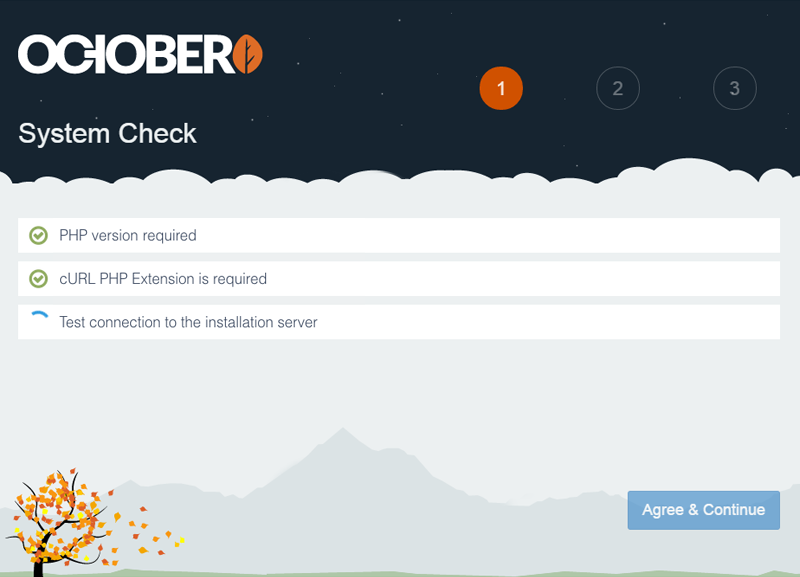
The wizard installation is an alternative way to install October CMS without using Composer. It is simpler than the command-line installation and doesn't require any special skills.
- Prepare a directory on your server that is empty. It can be a sub-directory, domain root or a sub-domain.
- Download the installer archive file (opens new window).
- Unpack the installer archive to the prepared directory.
- Grant writing permissions on the installation directory and all its subdirectories and files.
- Navigate to the
install.phpscript in your web browser. - Follow the installation instructions.
# Troubleshooting Installation
The following articles explain how to resolve typical issues that can occur during or after installation.
- Installation freezes after entering the license key (opens new window)
- cURL error 60: unable to get local issuer certificate (opens new window)
- Specified key was too long; max key length is 767 bytes (opens new window)
- Blank screen when opening the application (opens new window)
- Invalid security token error when logging in (opens new window)
- Backend panel displays "Page not found" (404) (opens new window)
- Error 500 when updating the application (opens new window)
- Zend OPcache API is restricted by "restrict_api" configuration directive (opens new window)
- Composer error: Invalid credentials (HTTP 403) (opens new window)
More solutions are listed under Known Errors (opens new window) in the Knowledge Base.